Technical Guide
/
Article
Diagnosing Slow-Internet Complaints
How BQN helps ISPs diagnose slow-Internet complaints and reduce support calls.
Overview
A subscriber calls to say the internet is slow because a speed test shows a rate well below the contracted plan.
Check the subscriber in BQN
- Find the subscriber: go to Status > Subscribers > QoE Metrics and click the subscriber IP address or identifier to open the Subscriber Dashboard.
- Check that the assigned rate policy matches the contracted downstream and upstream rates. In this example, the plan (100 Mbps) is correctly assigned, so the cause lies elsewhere.

- Review the DPI application breakdown over time. At one point, fast.com accounted for almost 50% of the traffic, YouTube for more than 30%, and Netflix for part of the rest. This could explain why the speed test did not reach the expected maximum speed.
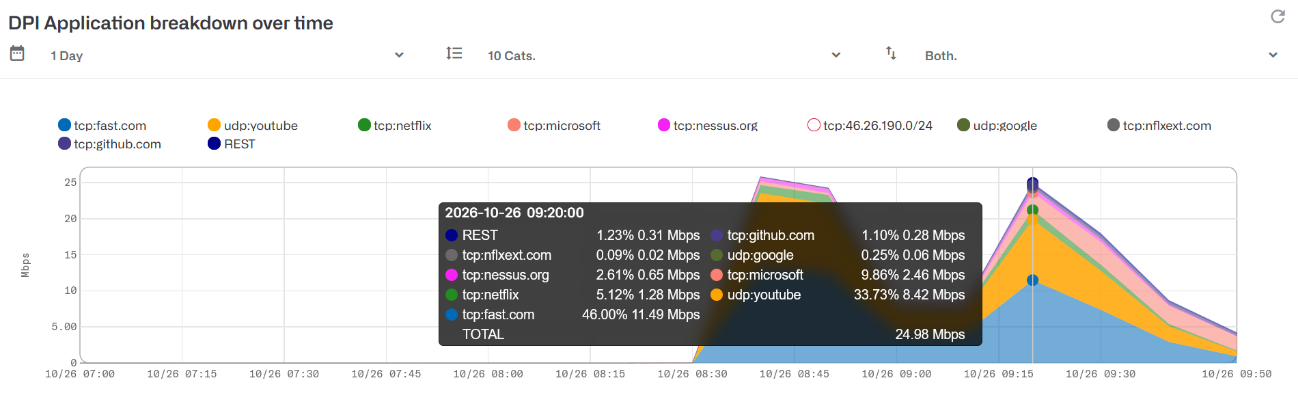
- Because historical DPI information is sampled, confirmation with live traffic is needed. Contact the customer and ask them to run the speed test again while you watch the Subscriber Dashboard in Live mode.
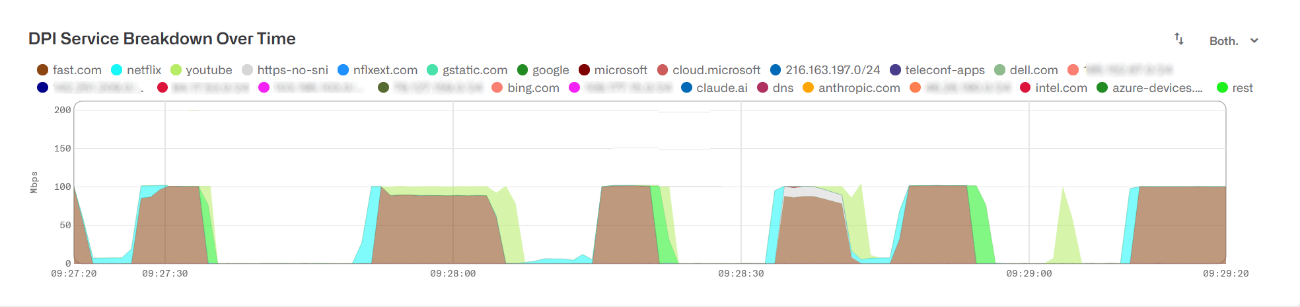
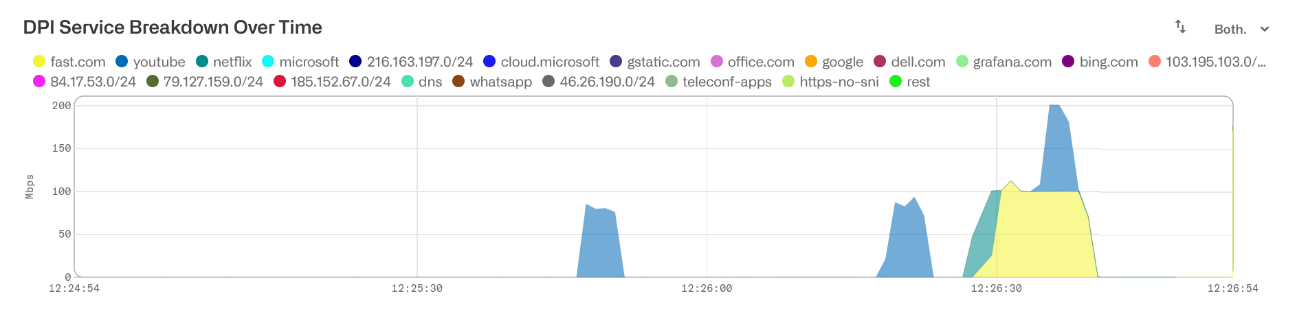
- The live mode confirms that streaming traffic (YouTube and Netflix) is present while the fast.com test is running. This is why the speed test shows a rate below the plan: the full plan is being delivered, but the test measures only its own share because it competes with the other traffic.
Configure speed-test traffic to use the full plan
To avoid misleading speed-test results in the future, configure BQN traffic policies to grant speed tests the full rate plan regardless of concurrent background traffic:
- Go to Configuration > Profiles and create or verify a DPI profile containing the predefined signatures for the supported speed-test services.
- Create a subscriber flow policy for speed-test traffic.
- Set the policy speed limit to 100% of the subscriber rate plan.
- Set Skip Rate to Yes. This allows recognized speed-test traffic to reach the full plan rate even when total household traffic exceeds the normal subscriber limit.
- Create a flow-policy rule that matches the speed-test DPI profile and selects the new speed-test policy.
- Apply the rule first to the affected subscriber or a test subscriber group.
Validate the fix
- Ask the household to start the stream again and confirm in the dashboard that it is using significant downstream bandwidth.
- Run the same speed test from the same device and connection used during diagnosis.
- In the live flow view, check that the test flows match the speed-test DPI profile and are assigned the new flow policy.
- The test now reaches the contracted plan rate while the stream keeps playing.
Conclusion
Many support tickets arise because customers are unaware that, while they run a speed test, other household members may be using part of the plan bandwidth. BQN helps in two ways:
- It confirms the cause: other applications are indeed using bandwidth.
- It prevents the confusion from recurring, thanks to its advanced DPI-based traffic policies.